

Follow a training and understand how it ended
A training runs in the cloud for the time you chose, and you do not have to watch it. When you do, the platform shows its stage and how good the model is getting, and lets you stop it. This guide opens a training on its way, stops it, and reads how a finished one ended.
What you will learn
- What each stage of a training means
- How to stop a training, and what you lose
- Where to read why a training ended
- How to read the curve of a finished training
Before you start
You need a training that has started: see Train your first model.
1. Find the training
Open the dataset and go to the «Models» tab. A training on its way shows its state on the right of its card:
- «Pending». The platform is looking for a machine. It can take a few minutes.
- «Training», with a spinner. The model is learning; a bar shows the time it has used.
When it ends, the card says «Finished», with the scores, «Failed» or «Cancelled».

2. Open it
Click the card. The page updates by itself; you do not need to reload it. Its heading tells the stage:
- «Preparing environment». Just after you click «Train», while the platform prepares the images. Keep the page open until it changes.
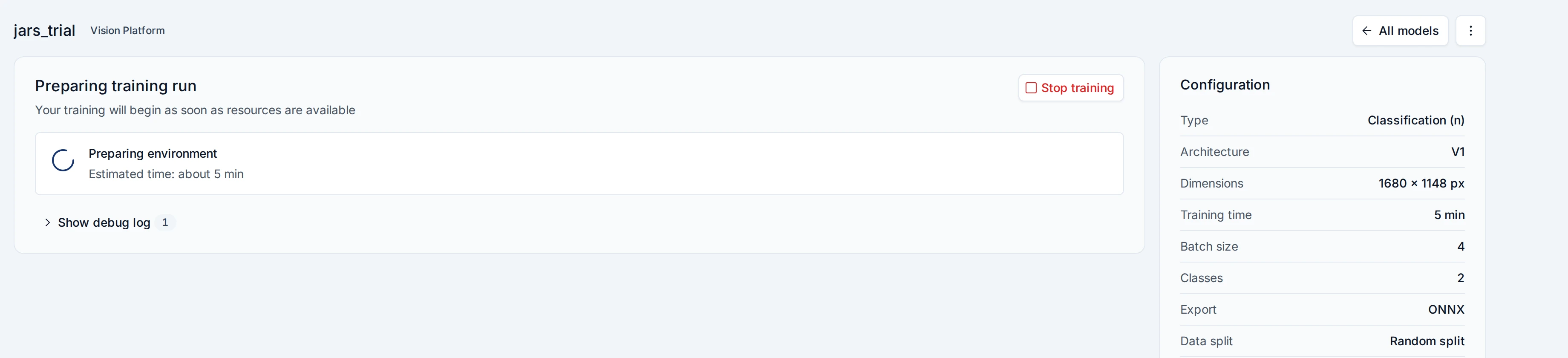
- «Preparing training run». The training waits for a machine. «Estimated time» says how long, when the platform knows.
- «Training in progress». The model learns. «Training metrics» shows the last epoch, a pass over all the training images, and the score on the validation images, with a chart that grows by one point per epoch.
«Configuration», on the right, repeats what the training was asked to do.
3. Stop it, if you must
«Stop training», at the top right, ends the training at once. Once it trains, the dialog says the epoch it has reached. The run is lost: it cannot be resumed, only started again from the beginning. A training stopped while it still waits for its machine gets its tokens back; one whose machine has started keeps the charge. Stop a training when you know it is wrong, for example when you forgot some images.

4. Confirm
Click «Stop training» in the dialog to confirm, or «Cancel» to let it go on. When a training ends, its page says how:
- «Training complete». The model is trained and tested: «See results» opens its results.
- «Training failed». Something went wrong; the message says what.
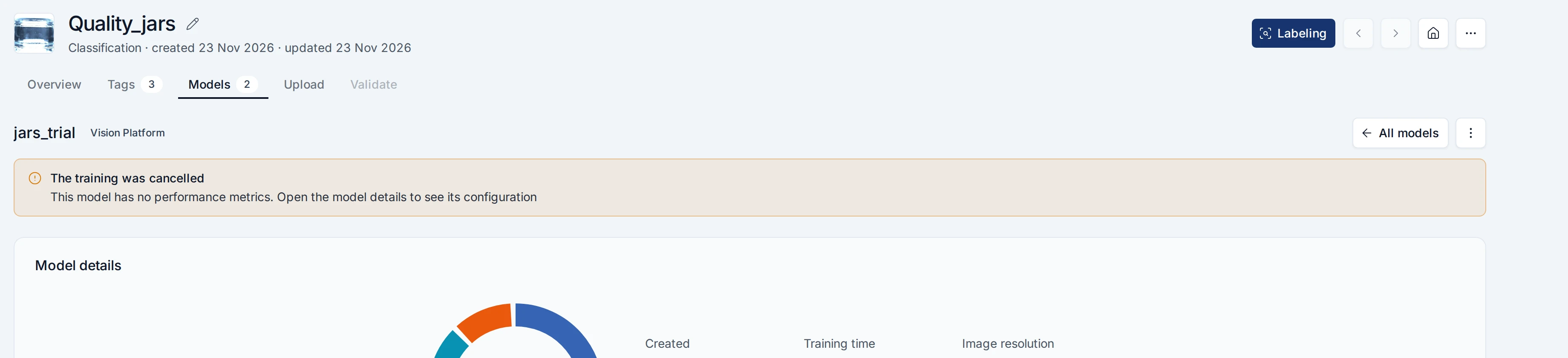
- «The training was cancelled». Somebody stopped it, as here.
If somebody asked for an email when the training was launched, it arrives now.
5. Read why it stopped
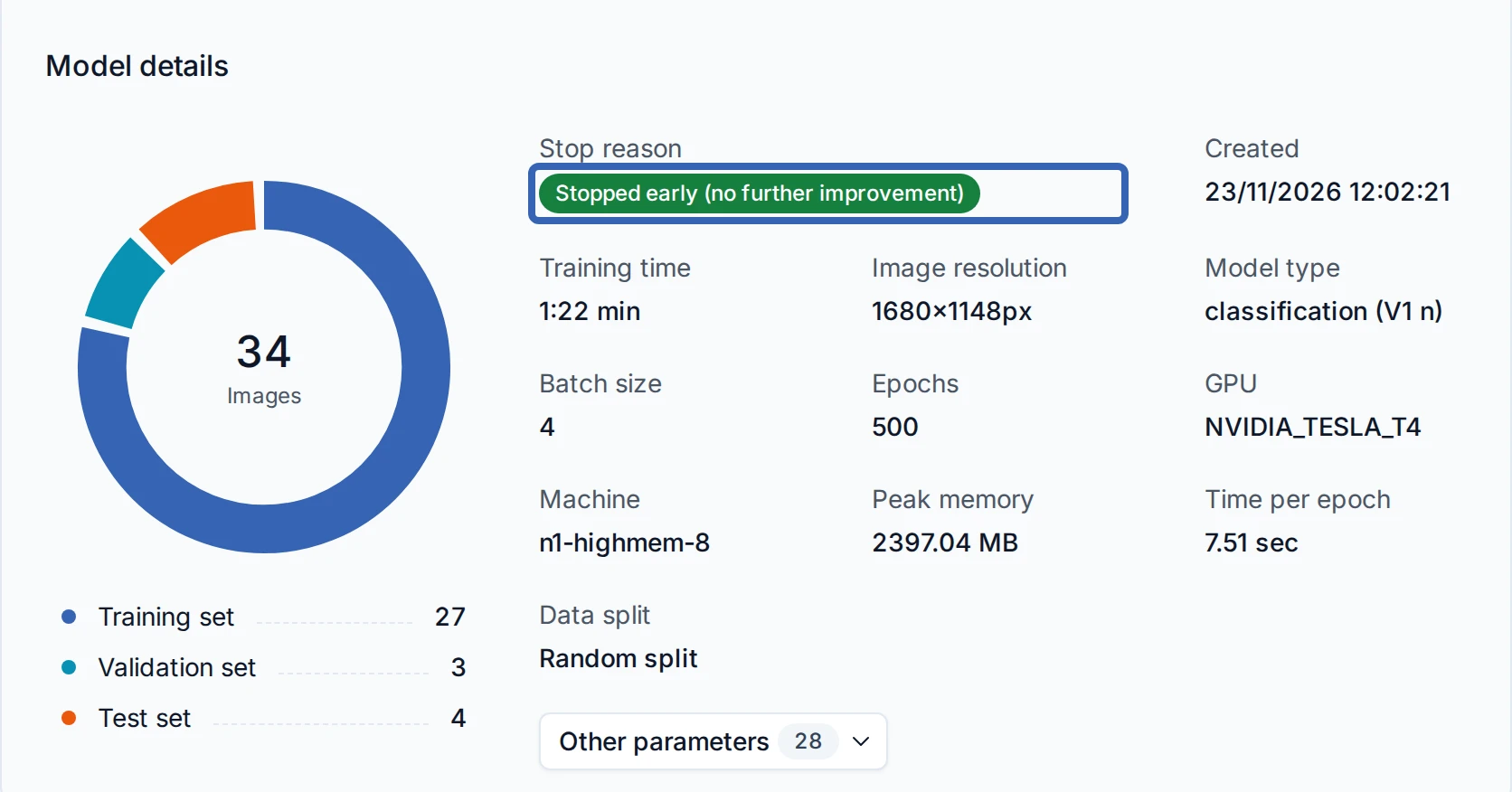
The page of the training says that it was cancelled, and «Model details» keeps its «Stop reason». Every training has one:
- «Stopped early (no further improvement)». The score had stopped improving, so the platform ended the training before its time. The model is complete.
- «Trained for the full time» or «Trained every epoch». It used all its time or all its passes.
- «Cancelled by user». Somebody stopped it, as here.
- «Timed out». No machine became free in time, and the platform cancelled it before it started.
- «Out of GPU memory», «Training failed», «Training job failed». It failed: A training failed or stopped early says what to change.
Administrators also see the training logs, below.

6. See it in the list
Click «All models». The cancelled training says «Cancelled»; a finished one shows its scores instead. A cancelled or failed training has no model to use: delete it when you no longer need it, see Find the best model of a dataset.

7. Look at a training that finished
A training that finished keeps the curve it drew while it ran. Open it from the list and click «Training details», on the right: one point per epoch, the score on the validation images. A curve still climbing at the end says that more time would help; a flat one, that it would not.

8. Read how it ended
Its «Stop reason» says «Stopped early (no further improvement)»: the score on the validation images had stopped improving, so the platform ended it before its five minutes. The model is complete; A training failed or stopped early explains every reason.
Next steps
Recorded on Rosepetal release 1.8.15.